WhatsApp has become one of the most popular messaging apps in the world. Millions of people use it daily for personal conversations, business communication, and sharing important information. Sometimes, you may want to save a conversation for future reference, create a backup, or share chat records with someone. That’s where learning How to Export WhatsApp Chat on Android becomes useful.
Whether you want to keep important messages, transfer chats to another device, or simply store conversations safely, WhatsApp provides a built-in export feature that makes the process simple.
In this detailed WhatsApp Chat Export Guide, you’ll learn different ways to export chats, save conversations, and download chat history on Android devices.
Why Export WhatsApp Chats?
There are several reasons why users choose to Export WhatsApp Chat Android conversations:
- Save important business discussions
- Keep personal memories secure
- Create records of important information
- Transfer conversations to another device
- Share chats via email
- Store chat backups outside WhatsApp
Using the WhatsApp Data Export Android feature helps ensure that your important conversations remain accessible even if you change phones or lose access to your account.
What Happens When You Export a WhatsApp Chat?
When you perform a WhatsApp Conversation Export, WhatsApp creates a text file containing the chat messages. You can choose whether to include media files such as:
- Photos
- Videos
- Documents
- Voice notes
- Stickers
The exported file can then be shared through email, cloud storage, or other apps.
This process is different from a regular WhatsApp Chat Backup Android because exporting creates a readable file that can be viewed outside WhatsApp.
How to Export WhatsApp Chat on Android
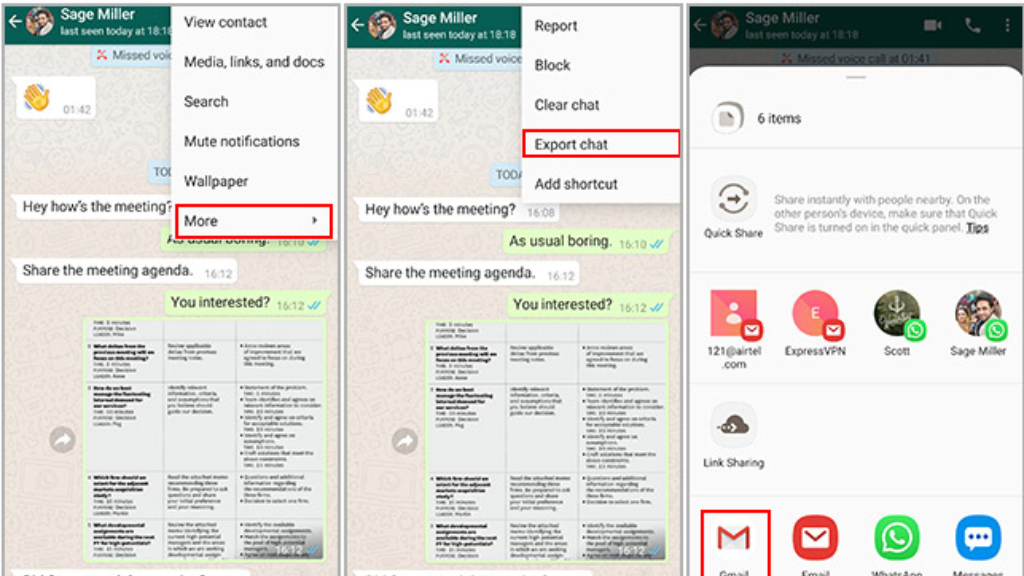
Follow these simple steps to Export WhatsApp Messages Android devices.
Step 1: Open WhatsApp
Launch WhatsApp on your Android smartphone.
Step 2: Select the Chat
Open the conversation you want to export.
This can be:
- Individual chats
- Group chats
- Business conversations
Step 3: Open Chat Options
Tap the three-dot menu located in the top-right corner of the screen.
A menu will appear with several options.
Step 4: Tap More
Select More from the dropdown menu.
Step 5: Choose Export Chat
Tap Export Chat.
WhatsApp will now ask whether you want to include media files.
You will see two options:
- Export Without Media
- Export With Media
How to Export WhatsApp Chat Without Media
If you only need text messages, choose Export WhatsApp Chat Without Media.
Benefits
- Smaller file size
- Faster export process
- Easier sharing through email
- Less storage space required
The exported file will contain only the conversation text in a TXT format.
This method is ideal for users who need a WhatsApp Chat TXT File Export for documentation or record-keeping purposes.
How to Export WhatsApp Chat With Media
If photos, videos, and documents are important, select Export WhatsApp Chat with Media.
Benefits
- Includes all shared files
- Preserves complete conversation history
- Useful for business records
- Great for memory preservation
Keep in mind that exporting media can significantly increase file size.
Large chats may take longer to process and share.
How to Export WhatsApp Chat to Email
One of the easiest methods is using WhatsApp Chat to Email.
Steps
- Complete the export process.
- Choose Email from the sharing options.
- Enter your email address.
- Send the exported file.
You’ll receive:
- TXT chat file
- Media attachments (if selected)
This method allows you to access conversations from any computer or device.
How to Save WhatsApp Chat on Android
Many users search for Save WhatsApp Chat Android methods because they want to preserve important messages permanently.
Recommended Options
Google Drive
Upload exported chats to Google Drive for easy access.
Local Storage
Save the exported file directly on your Android device.
Cloud Storage
Use services like:
- Google Drive
- Dropbox
- OneDrive
Cloud storage provides additional protection against data loss.
WhatsApp Chat Backup vs Chat Export
Many users confuse Backup WhatsApp Messages Android with exporting chats.
WhatsApp Backup
- Restores chats inside WhatsApp
- Stored in Google Drive
- Cannot be easily read outside WhatsApp
WhatsApp Export
- Creates readable text files
- Can be shared via email
- Accessible on computers
- Useful for record-keeping
Both options are useful but serve different purposes.
How to Download WhatsApp Chat History
If you’re looking to Download WhatsApp Chat History, exporting is one of the easiest solutions.
After exporting:
- Save the TXT file.
- Store it locally or in the cloud.
- Access it whenever needed.
The WhatsApp Chat Download Process is simple and requires only a few taps.
Can You Export Entire WhatsApp Data?
WhatsApp also offers broader data export options.
WhatsApp Data Export Android Features
You can request:
- Account information
- Profile details
- Group information
- Settings data
However, chat exports remain the easiest way to save individual conversations.
How to Transfer Exported Chats to a Computer
Many users perform a WhatsApp Chat Transfer Android process after exporting chats.
Method 1: USB Cable
- Connect Android phone to PC
- Locate exported files
- Copy them to your computer
Method 2: Email
- Send exported chat to yourself
- Open email on PC
- Download files
Method 3: Cloud Storage
- Upload exported files
- Access them from your computer
This ensures your conversations remain secure and easily accessible.
Common Problems During WhatsApp Chat Export
Sometimes users encounter issues while exporting chats.
Export Option Not Showing
Possible reasons:
- Outdated WhatsApp version
- Temporary app glitches
Solution:
- Update WhatsApp
- Restart the device
File Too Large
Large media files may exceed sharing limits.
Solution:
- Use Export WhatsApp Chat Without Media
- Upload files to cloud storage
Email Sending Failed
Possible cause:
- Attachment size limits
Solution:
- Export without media
- Compress files before sending
Tips for Safe WhatsApp Chat Exports
Follow these best practices:
- Export important chats regularly
- Store backups in multiple locations
- Protect sensitive files with passwords
- Use trusted cloud storage providers
- Avoid sharing confidential chats publicly
These practices improve data security and reduce the risk of losing important information.
Benefits of Exporting WhatsApp Chats
Here are some major advantages:
Better Record Keeping
Maintain important conversations for future reference.
Easy Sharing
Send conversations to colleagues, friends, or family.
Data Protection
Keep copies outside WhatsApp.
Device Migration
Useful when changing smartphones.
Legal Documentation
Exported chats may help preserve records when needed.
Overall Summary
Learning How to Export WhatsApp Chat on Android is a valuable skill for anyone who wants to save important conversations, create backups, or share chat records. Whether you choose Export WhatsApp Chat with Media or Export WhatsApp Chat Without Media, the process is straightforward and only takes a few minutes.
Using WhatsApp’s built-in export feature, you can easily Download WhatsApp Chat History, perform a WhatsApp Conversation Export, and keep your data safe. Combined with regular WhatsApp Chat Backup Android practices, exporting chats ensures your valuable conversations remain protected and accessible whenever you need them.
FAQs
1. Can I export WhatsApp chats without media files?
Yes. WhatsApp allows users to choose the “Without Media” option while exporting chats. This creates a smaller TXT file containing only text messages, making it easier to store, email, and share.
2. Where are exported WhatsApp chats saved on Android?
Exported chats can be saved in local storage, Google Drive, email attachments, or other cloud services. The location depends on the sharing method selected during the export process.
3. Can I export an entire WhatsApp account at once?
No. WhatsApp primarily allows exporting individual chats or group conversations. For complete account data, users can request account information separately through WhatsApp settings.
4. Does exporting a chat delete it from WhatsApp?
No. Exporting a chat only creates a copy of the conversation. The original messages remain safely stored within your WhatsApp account unless you manually delete them.
5. What format are exported WhatsApp chats saved in?
WhatsApp typically saves exported conversations as TXT files. If media is included, additional files such as photos, videos, and documents are attached alongside the text file.
Read More: WhatsApp New Update